Where to find the SQL editor
The simplest way to get started is directly in the Quantivly Hub. Inside the Hub, go to Explore › Apps and open the SQL queries card (“Web-based SQL editor for running your own queries.”).
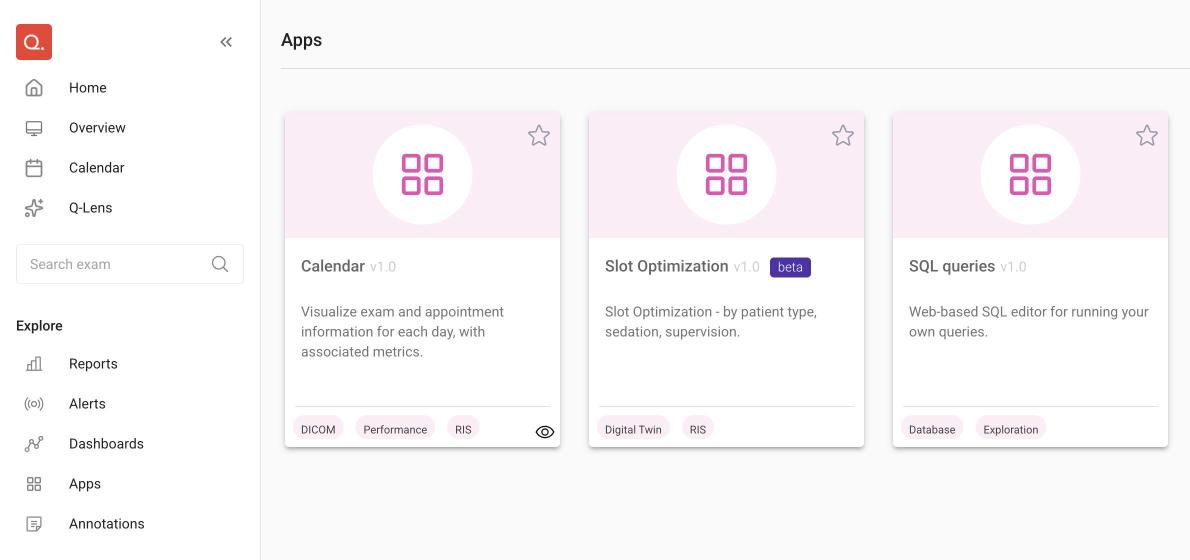
The SQL queries app opens SQLPad, an in-browser SQL editor that lets you:
Run queries interactively
Save queries for future reuse
Export results as CSV or Excel
✅ Safe by design: All access is read-only, so you can freely explore and analyze without ever altering the underlying data.
If the SQL queries card is missing, or SQLPad asks you to sign in and doesn't let you in, contact your Quantivly team to set up access.
Large results
SQLPad may limit the number of rows it displays for a single query. For large result sets, add filters or a
limit, or use Direct SQL Access.
SQL editor tips
Saving queries
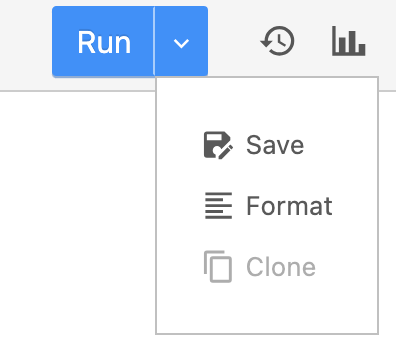
Save time by reusing your queries. Next to the Run button, click the down arrow to find Save.
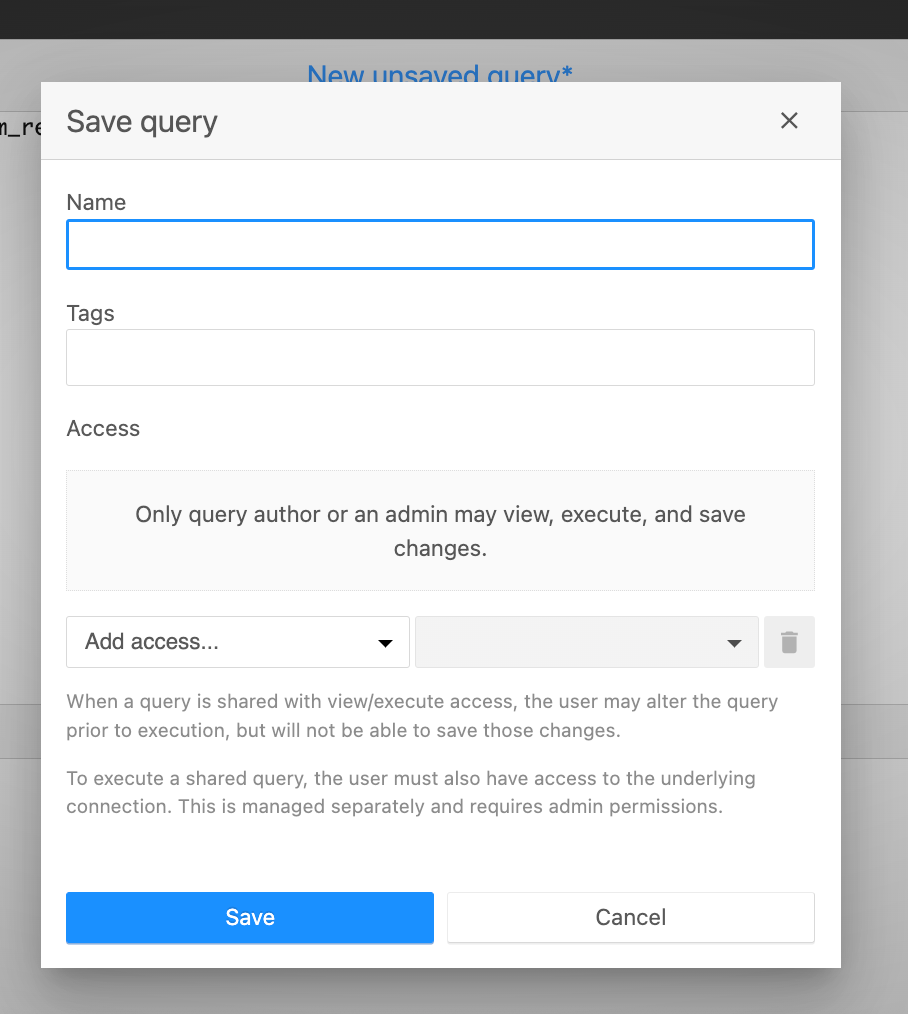
You can then give your query a name and tags, and choose who can access it.
Sharing queries
You can also share a query with other users. They can view and run it, and change it before running, but they can't save changes to your query. To run it, they also need access to the underlying database connection; contact your Quantivly team if a colleague can't run a query you shared.
Next: