Color coding colors Calendar tiles by an attribute — for example body section or patient class — so patterns stand out at a glance. Two related controls work together:
Which attribute drives the color — chosen on the Calendar itself, in Display Settings > Color.
The colors themselves — set in Settings > Color configuration, one color per value.
Choosing what to color by (on the Calendar)
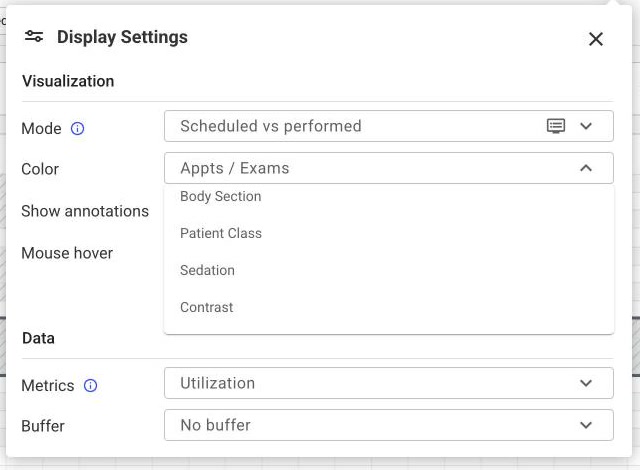
On the Calendar, select the Display button (the sliders icon) to open Display Settings, and use the Color dropdown to pick the attribute that drives coloring. The attributes are Appts / Exams, Body Section, Patient Class, Sedation, and Contrast (your starting attribute is a per-user preference). The change applies immediately and the legend updates to match; the attribute you color by is personal to your own view.
Setting the colors
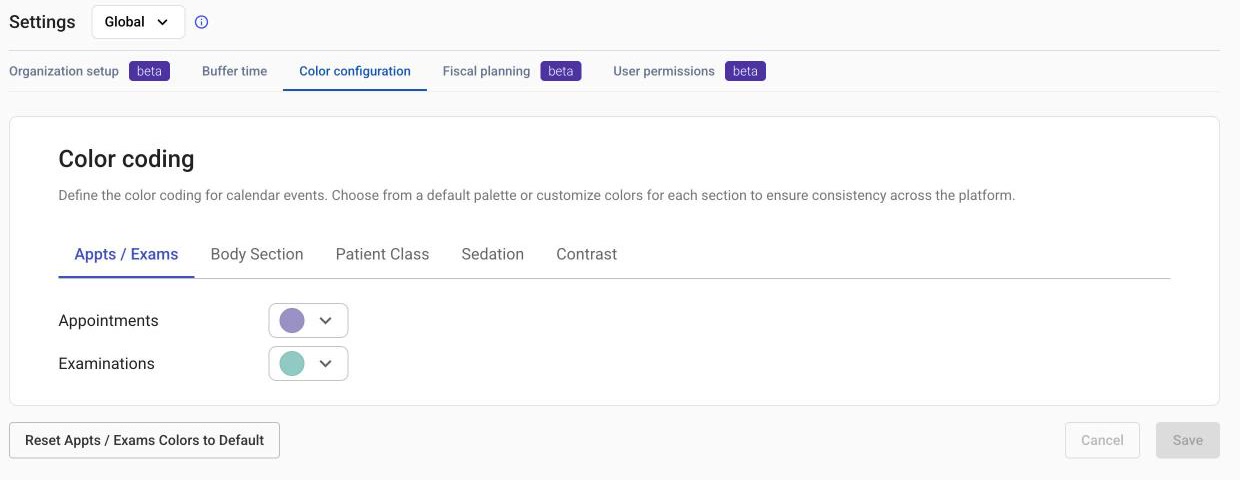
Open Settings (Global) > Color configuration to edit the colors; the page is headed Color coding. Each attribute has its own tab, and within a tab every value has a row with a color picker — pick one color per value. These colors are a site-wide setting — changes apply to everyone. Everyone can view these colors; changing them needs Change colors.
Save applies your changes — they appear on the Calendar the next time it renders.
Reset … Colors to Default (for example, Reset Appts / Exams Colors to Default) restores the currently open attribute’s colors (reset is per-attribute, not global). It applies immediately, with no Save needed.
Cancel discards unsaved picks.
How the colors appear
Colors apply to Calendar tiles in every display mode. Scheduled (appointment) bars are filled with the color; performed (exam) bars use it as a border with a lighter fill. A value with no configured color falls back to a default and shows as “n/a” in the legend. Only one attribute colors the tiles at a time, so attributes never conflict.