The Permissions tab under Settings › User permissions is a grid: capabilities down the side, your roles across the top. Tick a cell to grant that role the capability, clear it to revoke. Changes apply when you select Save changes.
Editing the matrix requires the Manage roles & permissions capability. This area is marked beta in the app.
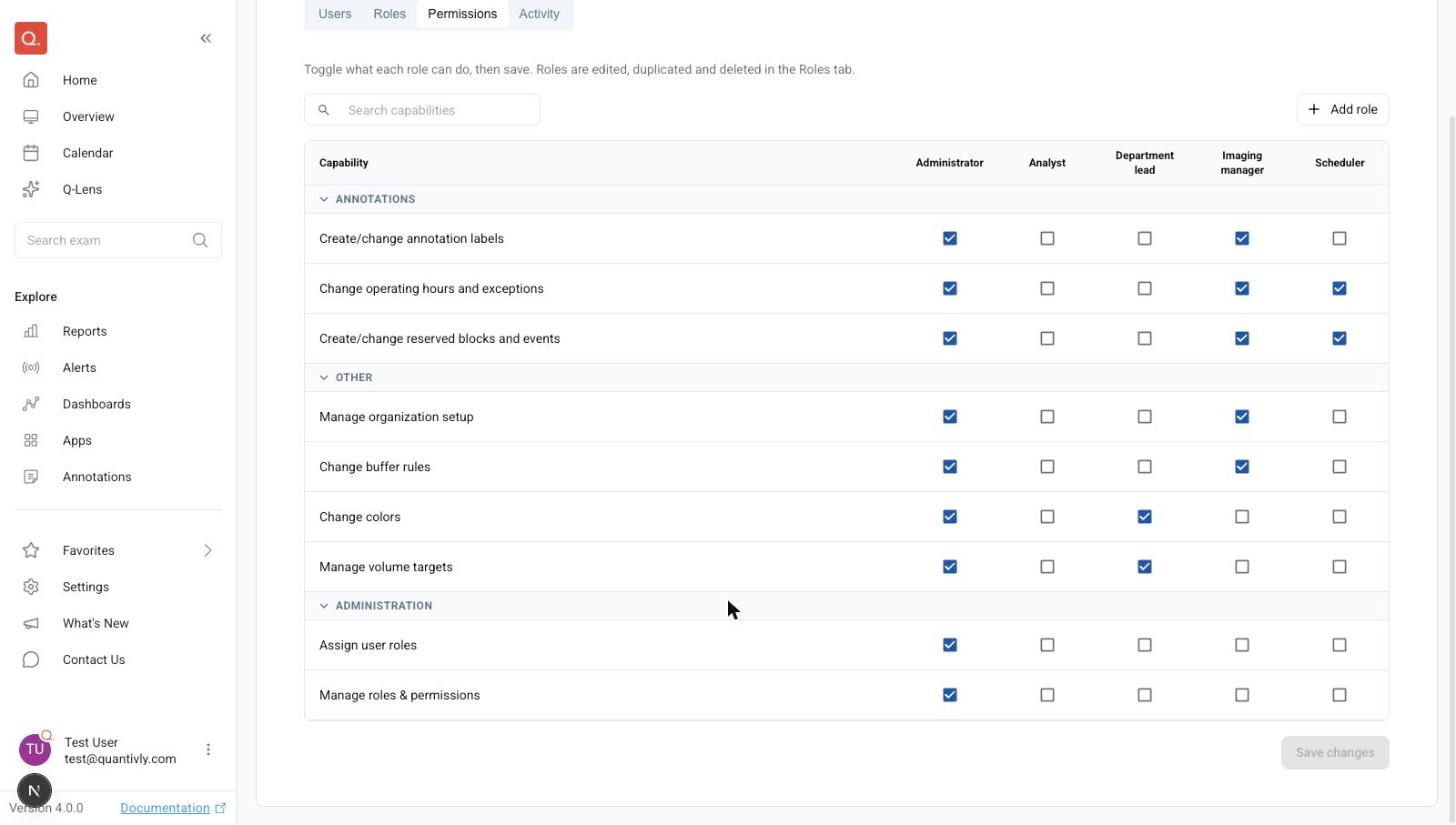
The capabilities
Nine capabilities, in three sections.
Annotations
Capability | What it allows |
|---|---|
Define reserved blocks and event groups | Create, rename, copy and delete reserved blocks and event groups, and edit their colors, rules and labels. Pair it with Schedule reserved blocks and events — on its own, the Reserved blocks and Events sections stay view-only |
Change operating hours and exceptions | Edit regular operating hours and the exceptions to them |
Schedule reserved blocks and events | Add, edit and delete reserved blocks and events on the schedule — the two share one capability. Creating or changing the blocks and event groups themselves also takes Define reserved blocks and event groups |
Other
Capability | What it allows |
|---|---|
Manage organization setup | Add and edit institutions, facilities and resources; link and decommission equipment |
Change buffer rules | Edit the buffer time added around exam durations |
Change colors | Edit how exams are color-coded on the Calendar |
Manage volume targets | Edit the annual exam-volume goals on Settings › Fiscal planning |
Administration
Capability | What it allows |
|---|---|
Assign user roles | Change which roles an existing member holds; opens the Users and Activity tabs |
Manage roles & permissions | Create, edit, duplicate and delete roles, and edit this matrix; opens the Roles and Permissions tabs. A holder can tick any capability onto a role they belong to, so treat this as full control over access |
The fiscal calendar has no capability
You will not find an entry for the fiscal calendar in this matrix. It is reserved to Quantivly and cannot be granted to any role, whatever its cells say — changing it re-cuts every quarter and year-to-date metric in the deployment and re-labels volume targets already stored against a fiscal-year number.
To change your fiscal year, contact your Quantivly team. Letting somebody edit the annual volume goals is a separate thing, and that one is grantable: give them Manage volume targets.
Granting and revoking
Ticking a cell lets that role make changes on the screen it covers, and clearing it takes that away again. Everyone can still view settings screens, except User permissions.
The whole grid is validated before anything is written, so a save either applies in full or is refused in full with nothing changed.
Why a save may be refused
A role that nobody belongs to does not count. A save is refused if it would leave nobody who holds Manage roles & permissions — and this matrix is the only screen that could grant it back. A role that holds it but has no active members does not count, so a save can be refused even though such a role still exists. Assign that role to somebody, or grant the capability to a role that already has active members.
The Administrator role cannot be weakened. Clearing one of its cells is refused, so your deployment always keeps one role that can reach everything. See Users and roles.
What the matrix does not tell you
Your Quantivly team holds a small number of accounts that sit outside this model and can act regardless of what the matrix says. Every deployment has at least one, so that support can still reach a site that has locked itself out.
A few settings also sit outside it in the other direction: they are reserved to Quantivly and cannot be granted to any role. The fiscal calendar is one, as above; those fields carry a Managed by Quantivly badge where they appear.
Neither can be changed from this screen.