Why buffer time exists
Quantivly computes exam duration from imaging data: specifically, from the timestamp of the first slice of the first image to the last slice of the last image. This captures the pure scan time accurately, but it misses everything that happens around the scan itself.
In practice, each exam slot involves more than image acquisition. Staff need time to:
Escort the patient into the room and get them positioned on the table
Confirm protocols, place IV lines, or administer contrast or sedation
Complete post-scan tasks: helping the patient off the table, cleaning and resetting the room, and preparing for the next case
This surrounding time is called patient turnover, and ignoring it leads to an overly optimistic view of scanner utilization and throughput capacity.
Buffer time solves this by adding configurable pre- and post-exam time windows around each scan, giving a more realistic picture of how long a scanner is truly occupied per case.

Two modes: Fixed buffer and Variable buffer
Type | Fixed buffer | Variable buffer |
|---|---|---|
Pre/post symmetry | Symmetrical (same pre and post) | Asymmetrical (pre and post are independent) |
How it applies | Same value for every exam | Conditionally, based on patient and exam characteristics |
Best for | A quick, uniform baseline | Accurate modeling of complex, heterogeneous case mixes |
Fixed buffer
Fixed buffer applies a single, uniform value symmetrically around every exam. For example, a 5-minute fixed buffer adds 5 minutes before and 5 minutes after every scan, for a total of 10 minutes per exam.
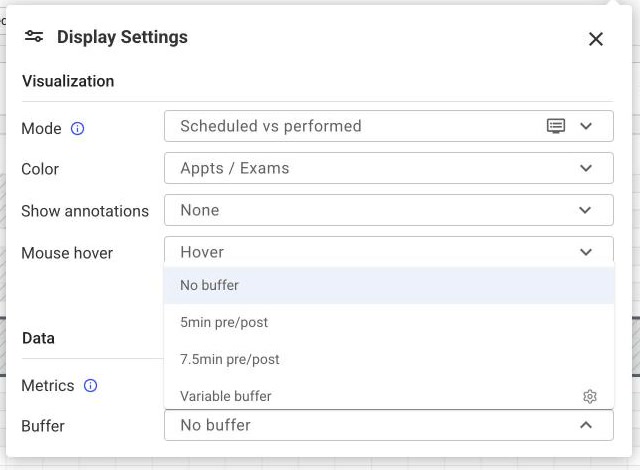
The following fixed buffer options are available in visualizations:
No buffer
5 min pre + post
7.5 min pre + post
Fixed buffer is a good starting point, but it treats a routine outpatient brain MRI the same as a sedated pediatric case — which is rarely accurate.
Variable buffer
Variable buffer allows you to define rules so that buffer time is automatically adjusted based on the specific characteristics of each exam and patient.
The logic: base buffer + add-ons
Variable buffer is calculated as:
Total buffer = Base buffer + sum of all applicable add-onsBase buffer is added to every exam regardless of any other conditions. It can be a single value applied both before and after the exam (e.g., 5 minutes), or separate values before and after the exam (e.g.,
{"pre_buffer": 5, "post_buffer": 2}).
It can be set to 0 if you want purely rule-driven buffer.Add-ons are additional buffer increments layered on top of the base whenever a specific condition is met.
Multiple add-ons can apply to the same exam — they stack.
Available parameters
Parameter | Condition | Add-on behavior |
|---|---|---|
Age | Patient's age falls within a defined range | Single value applied symmetrically (pre = post) |
Patient class | Patient belongs to a specified class (e.g., INPATIENT) | Single value applied symmetrically (pre = post) |
Contrast | Exam requires contrast | Pre and post values defined independently |
Sedation | Patient requires sedation | Pre and post values defined independently |
Why these parameters matter in practice
Inpatients typically require more time than outpatients: they arrive by stretcher or wheelchair, may need additional assistance, and often have more complex medical histories that require extra coordination with clinical staff.
Sedated cases require time before the scan to administer and wait for sedation to take effect, and time after for recovery monitoring.
Contrast exams require IV placement and a waiting period before imaging can begin, plus time after for monitoring or line removal.
Pediatric patients (especially infants) require extra handling care, positioning time, and often parental coordination.
Configuration
Variable buffer is configured using JSON in Settings > Buffer time, under the Global settings scope.
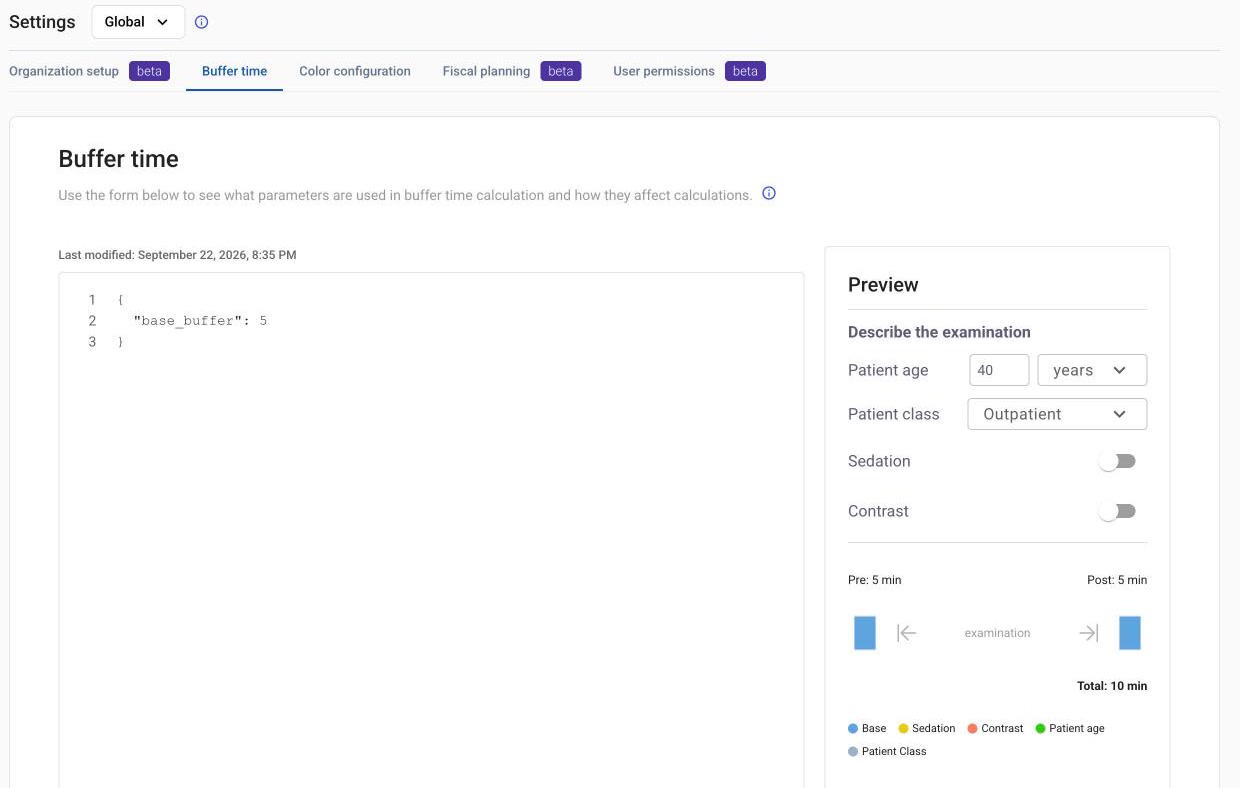
You can also reach it from the Calendar via Display > Data > Buffer > Gear icon next to the Variable buffer option.
Permissions
Editing Buffer time settings requires the Change buffer rules capability, which any role can be granted.
Everyone can view the settings and use the preview tool — viewing requires no permission.
The settings apply site-wide, meaning the same variable buffer rules are applied to all users.
How to configure variable buffer settings
JSON syntax
Variable buffer settings are defined using JSON. The configuration follows this structure:
{
  "base_buffer": 5,
  "variable_buffer_rules": {
    "age": [
      {"from_month": 0, "to_month": 6, "buffer": 8},
      {"from_month": 6, "to_month": 24, "buffer": 5}
    ],
    "patient_class": {
      "INPATIENT": 5,
      "OUTPATIENT": 1
    },
    "contrast": {
      "pre_buffer": 15,
      "post_buffer": 5
    },
    "sedated": {
      "pre_buffer": 15,
      "post_buffer": 5
    }
  }
}
Any parameter you don't need can simply be removed from the JSON. For example, to disable contrast-based buffering, delete the "contrast" block entirely.
The ‘Save’ button will only be enabled if the JSON is valid. Make sure to refer to the Validation rules section for validation details
Validation rules
Parameter | Rules |
|---|---|
Age |
|
Patient class |
|
Contrast | No specific validation required. |
Sedation | No specific validation required. |
Previewing results
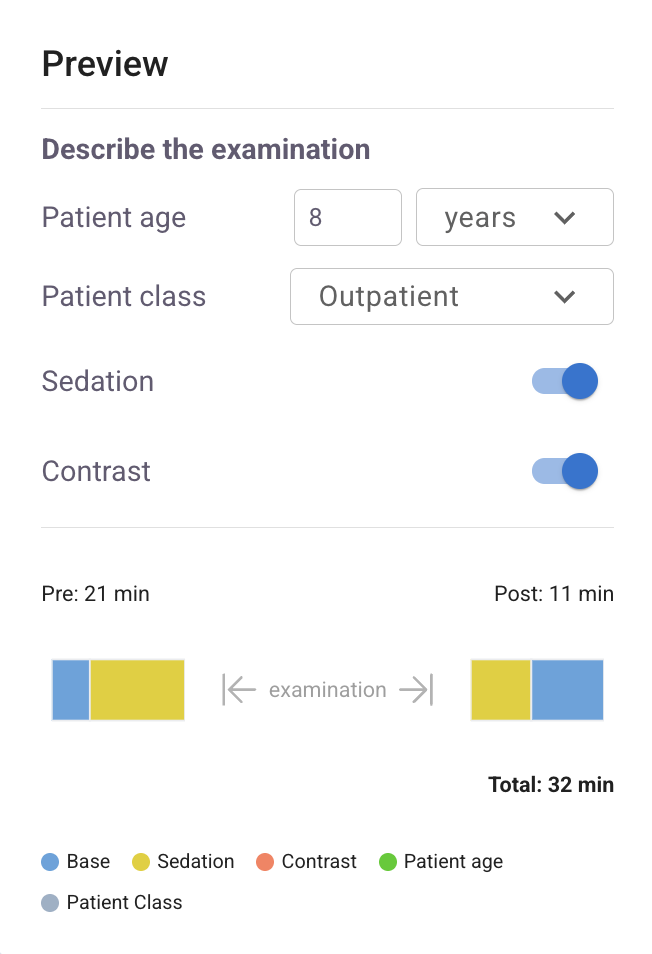
A preview tool is available on the right side of the Buffer time page. Enter patient characteristics to simulate what the pre/post buffer would be for a given case before saving your configuration.
Configuration examples
Example 1: Extra time for inpatients and sedated cases
This configuration uses:
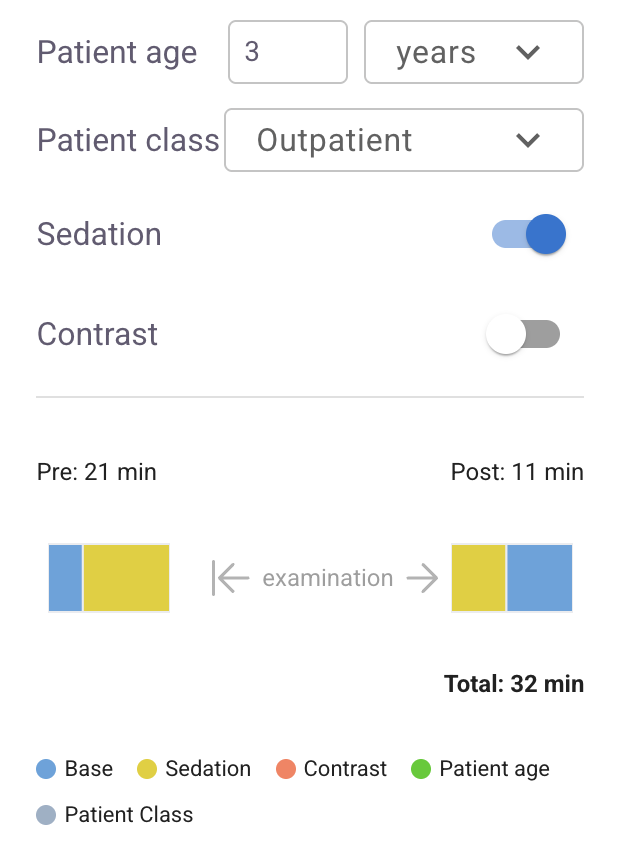
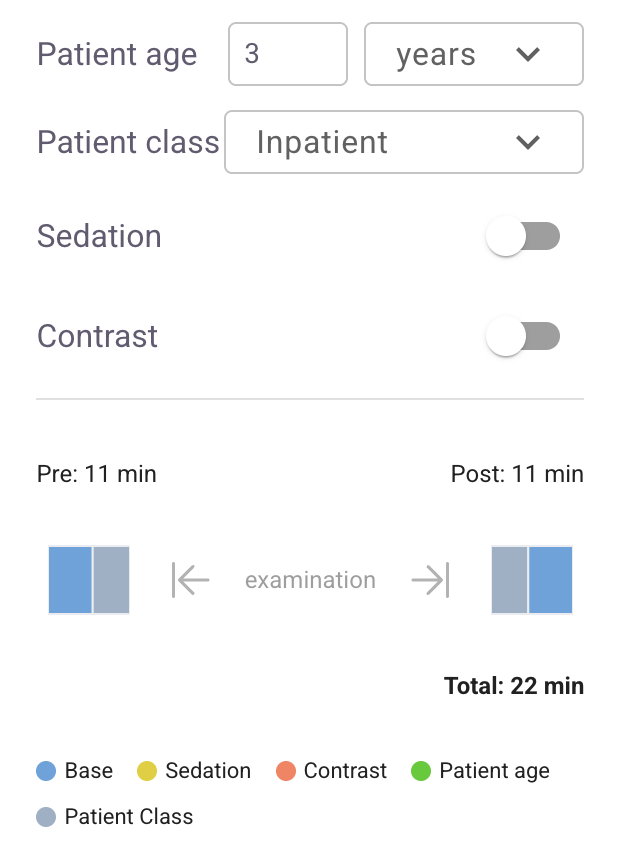
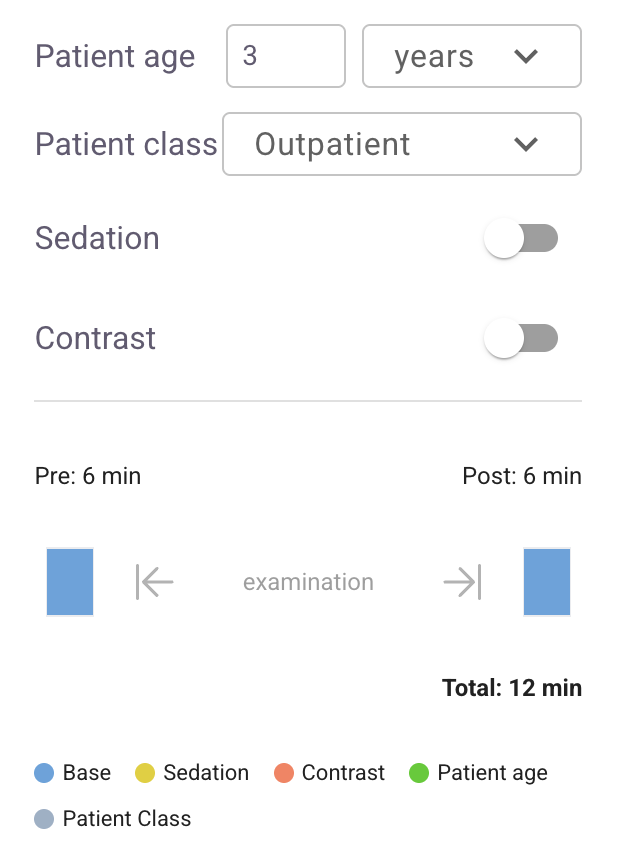
✅ Base buffer: 6 minutes before and after the exam✅ Sedation rule: 15 minutes before and 5 minutes after the exam✅ Patient class rule: INPATIENT — 5 minutes before and after the exam
This configuration does not use:
❌ Contrast❌ Age-based rules
{
  "base_buffer": 6,
  "variable_buffer_rules": {
    "sedated": {
      "pre_buffer": 15,
      "post_buffer": 5
    },
    "patient_class": {
      "INPATIENT": 5
    }
  }
}
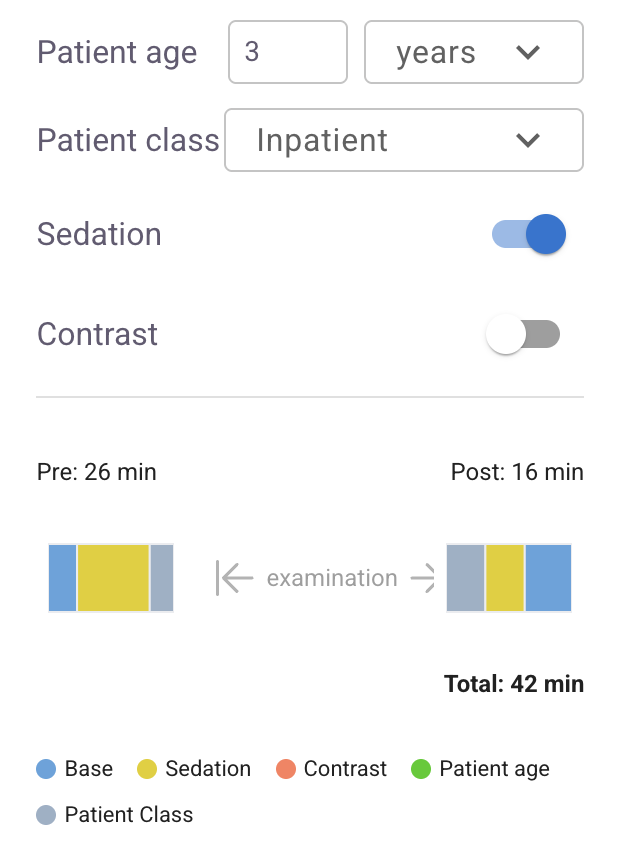
This produces four distinct total buffer values, illustrated below:
Inpatient exams with sedation | Sedation exams, not Inpatients | Inpatient exams without sedation | Other exams |
|---|---|---|---|
|
|
|
|
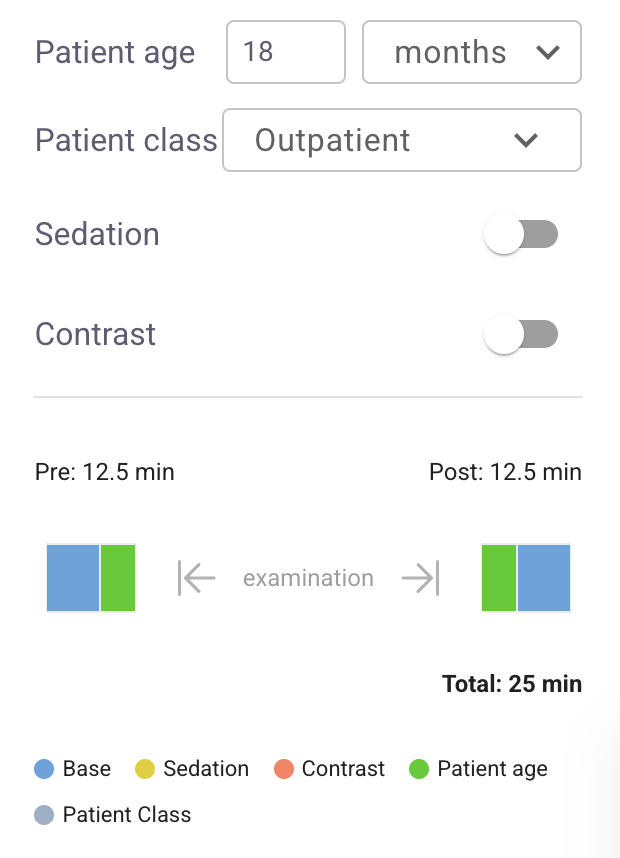
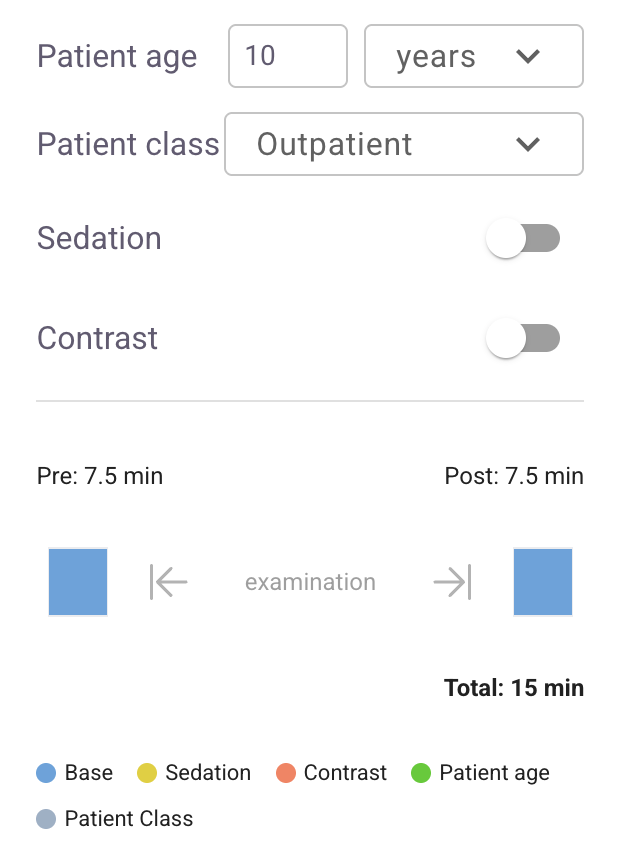
Example 2: Extra time for young pediatric patients
This configuration uses:
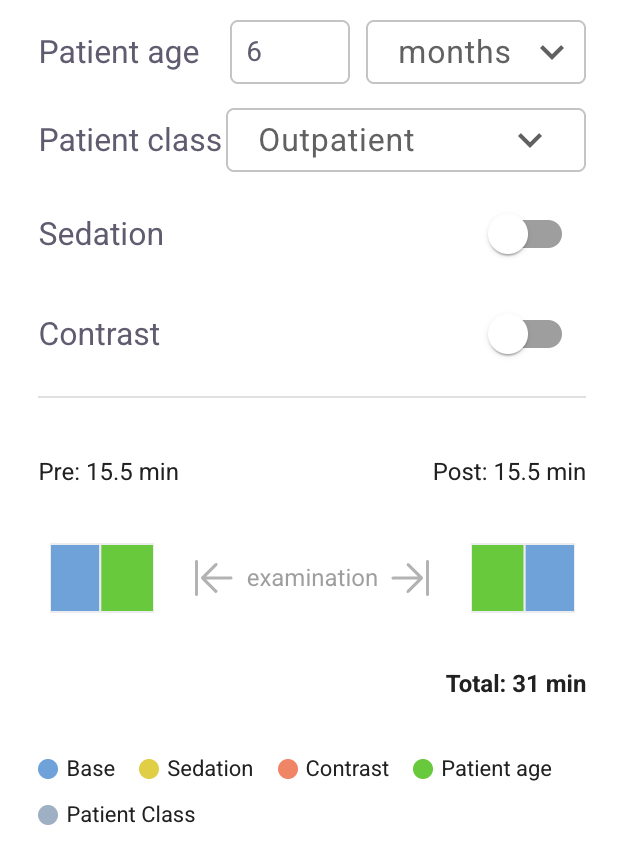
✅ Base buffer: 7.5 minutes before and after the exam✅ Age-based rules:One rule for patients between 0 and 12 months
Another rule for patients between 12 and 24 months
This configuration does not use:
❌ Contrast❌ Sedation❌ Patient class
{
  "base_buffer": 7.5,
  "variable_buffer_rules": {
    "age": [
      { "from_month": 0, "to_month": 12, "buffer": 8 },
      { "from_month": 12, "to_month": 24, "buffer": 5 }
    ]
  }
}
It will effectively create 3 distinct cases, illustrated below:
Patients aged 0 to 12 months | Patients aged 12 to 24 months | Other exams |
|---|---|---|
|
|
|
Example 3 : Contrast-only, no base buffer
This configuration uses:
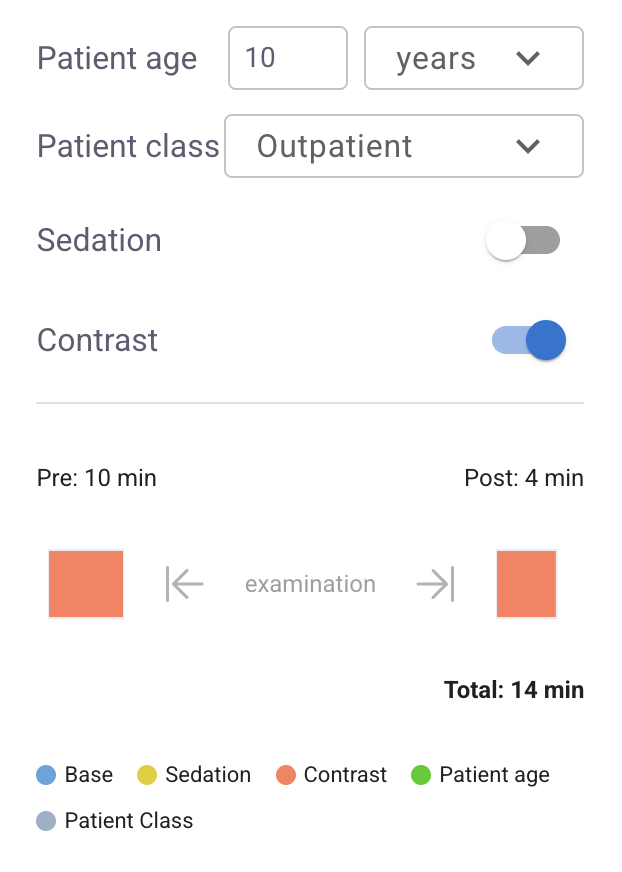
✅ Base buffer: set to 0 minutes✅ Contrast: 10 minutes before and 4 minutes after the exam
This configuration does not use:
❌ Age-based rules❌ Sedation❌ Patient class
{
  "base_buffer": 0,
  "variable_buffer_rules": {
    "contrast": {
      "pre_buffer": 10,
      "post_buffer": 4
    }
  }
}
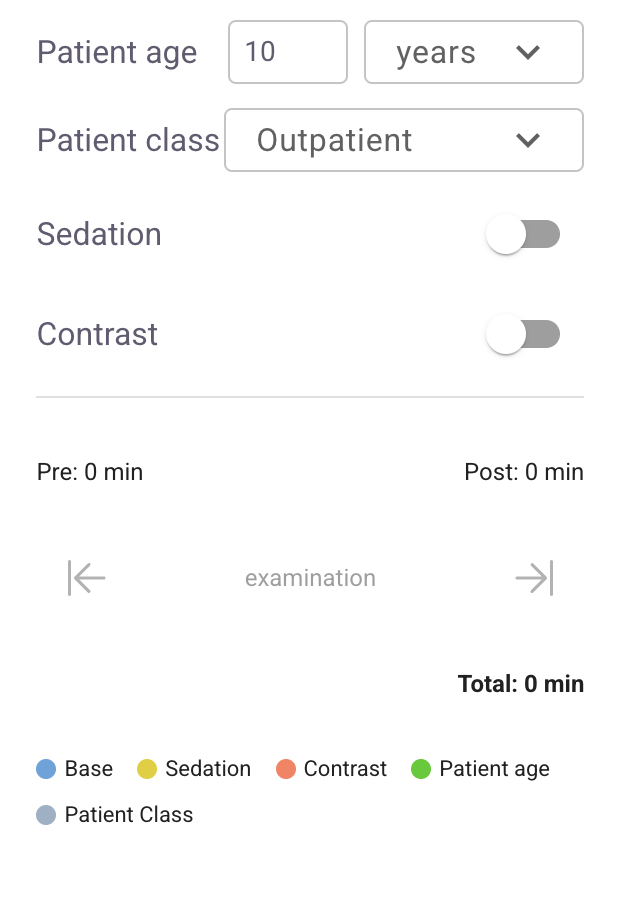
The settings above will result in a 14 min buffer for contrast exams (10 min before and 4 min after), and no buffer for all other exams.
Contrast exams | Other exams |
|---|---|
|
|
Where the variable buffer is used
Context | Available |
|---|---|
Calendar | Yes |
Overview | Yes |
Slot Optimization | Yes |
SQL queries | Yes |
Q-Lens | Not supported |