Annotations that would overlap are caught before they are saved. Instead of a generic error after the fact, you get a dialog showing what you are about to save alongside the annotation it collides with, so you can see the clash and decide what to change.
This check runs on every tab of the annotation editor (you only see the tabs your permissions allow), and the dialog names which kind of conflict it found:
Tab | Dialog title |
|---|---|
Regular hours | Regular hours conflict |
Exceptions | Exceptions conflict |
Reserved blocks | Reserved block conflict |
Events | Event group conflict |
Each kind of annotation is only checked against its own kind: regular hours against regular hours, exceptions against exceptions, reserved blocks against reserved blocks, and events only against events in the same event group.
Recurring openings and closures do not conflict
Exceptions come in two kinds: those that open time (extended hours) and those that close it (holidays, maintenance, downtime).
Two recurring exceptions are only checked against each other when they are the same kind — an opening against an opening, a closure against a closure. A recurring opening laid over a recurring closure is not a conflict, and is the intended way to re-open part of a closed period: close the whole of every Sunday, then add a recurring opening for the hours you do staff.
Overlaps within a kind are still caught. A one-off exception is checked against every exception it overlaps, whether that one opens or closes time, so a one-off opening cannot be laid over a recurring closure.
Reading the dialog
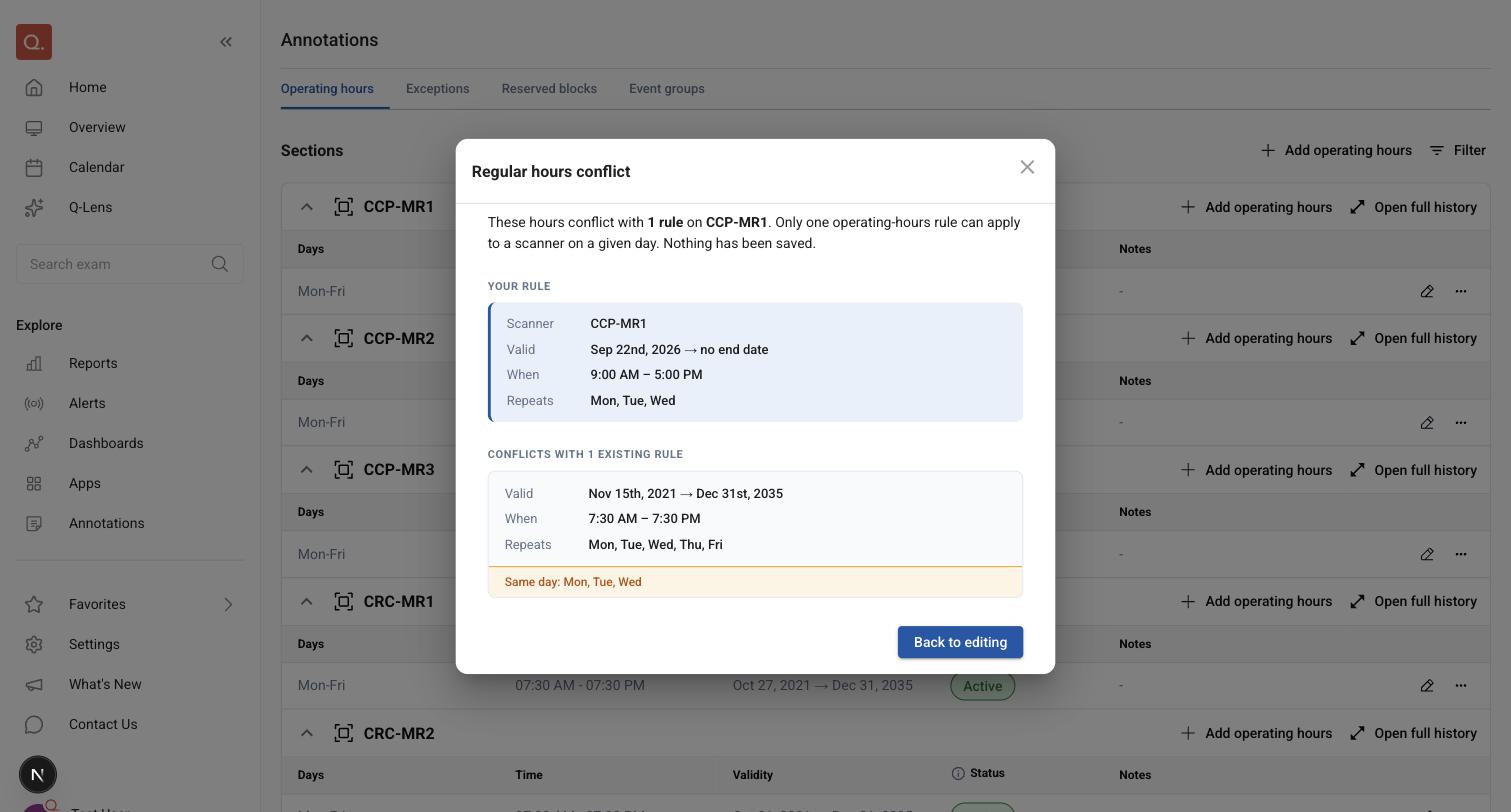
The dialog opens with a sentence saying how many existing annotations you have hit. For regular hours and reserved blocks it names the scanner and why the overlap is not allowed — for regular hours, "Only one operating-hours rule can apply to a scanner on a given day." For events it names the event group instead ("Labels in the same event group can't overlap."), and for exceptions it gives the count only. It always ends with Nothing has been saved.
Below that is your edit, then one card for each existing annotation it collides with, stacked one above the other.
Card | What it shows |
|---|---|
Your rule — the edit you just tried to save. Named for the tab you are on, so it reads Your exception, Your event or Your block elsewhere | The scanner, then Valid, When and Repeats for regular hours and other recurring annotations, or Date and When for a one-off exception, block or event. Exceptions also show their Type, events their Event group and Event label, and reserved blocks their Block |
Conflicts with … — headed with the number of existing annotations you have hit, named for the tab (rules, exceptions, events or blocks) | The same details for the rule already in place, except the scanner, which is not repeated because it is the same one |
A highlighted line at the foot of each existing card states the overlap itself. For regular hours it names the shared days — for example Same day: Mon, Tue, Wed — so you can see which days the two share without comparing the two lists yourself. On the other tabs it names the shared time window, for example Overlaps 9:00 AM – 10:00 AM.
Notes on the existing annotation
Where the annotation you are colliding with carries notes, they are shown on its card. This is often the fastest way to understand a conflict: the note usually says why the existing rule is there, which tells you whether to change yours or go and change theirs.
Notes are shown for the existing annotation only — the one you are still editing is in front of you.
What to do next
The dialog offers one action, Back to editing, which returns you to your edit with your input intact. Nothing has been saved, so adjust the days, the times or the scanner and try again.
There is deliberately no option to overwrite the existing annotation. Removing or amending an existing rule is a separate, deliberate edit on that rule.