About this feature
Attachments are files attached to a report. They contain the tabular data that underpins some of the charts and tables displayed in the report.
Most weekly reports include attachments. Other reports and dashboards may include them too, depending on how they are configured for your organization.
How to find and download attachments
Finding your report or dashboard
Use the left menu to locate your reports (in Explore › Reports) or your dashboard (in Explore › Dashboards).
Tip : for easy access, you can favorite a report/dashboard so it is directly accessible from the left menu, using the star button at the top right of your report/dashboard.
Downloading the attached file
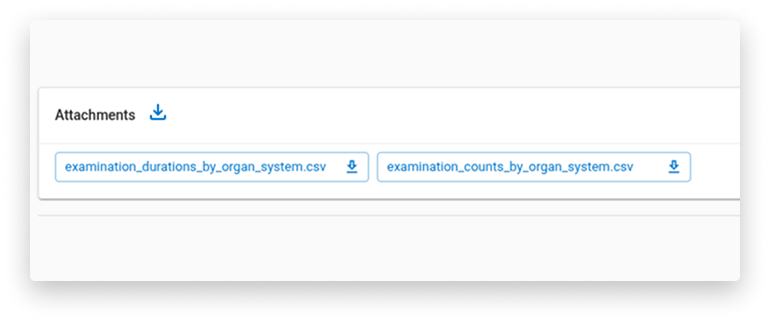
From a report itself : at the bottom of the page, look for the ‘Attachments’ footer at the very bottom of the page, as shown below.
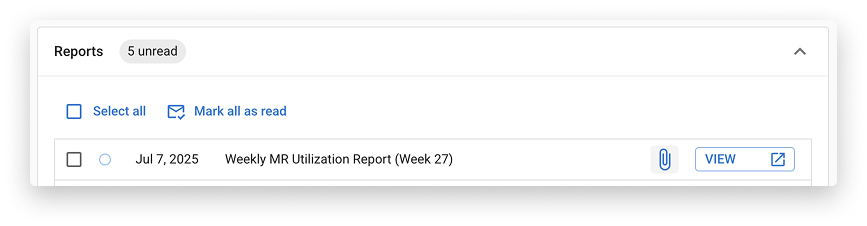
From the report list page: look for the paperclip icon on the right of a report’s row. If the report has a single attachment, clicking the icon downloads it straight away. If it has several, a menu opens listing each attachment, plus ‘Download all (.zip)’.
Format
Most attachments are .csv files; some reports attach Excel (.xlsx) files instead. Additionally, you can download multiple attachments as a .zip file.
Report sent by email
By default, attachments will be attached to the automated email you get from Quantivly when you subscribe to a report.
Enabling attachments on other reports
Interested in enabling attachments for other reports you use? Contact your Customer Experience team at contact-cx@quantivly.com